Microsoft SQL Server with Google Cloud SQL
💡 Disclaimer: This article reflects solely my opinion.
Generally speaking, when a vendor like Microsoft offers products or services—such as Windows Server and SQL Server—the tightest integration and greatest ease of use will usually come from using that vendor’s own cloud platform, in this case Microsoft Azure. This is often where you’ll find the most seamless experience and the highest degree of flexibility. However, there are situations where deploying another vendor’s product on a different cloud platform, such as Google Cloud Platform (GCP), can be a strong option. For example, if you have an application already running on Google Cloud that needs low-latency access to a Microsoft SQL Server database, hosting SQL Server close to that application within GCP can provide performance and architectural benefits.
Is running Microsoft SQL Server on Google Cloud a good option? Let’s find out.
Google Cloud offers multiple SQL Server editions—Express, Web, Standard, and Enterprise—across the 2017, 2019, and 2022 releases of SQL Server. In this exploration, we focus on two key scenarios:
- The replication conundrum
- The account management conundrum
These scenarios warrant deeper investigation, because implementation details are critical when you’re running SQL Server in GCP in a production environment. How replication and disaster failover actually work has a direct impact on availability and recovery objectives. Likewise, account management—and any integration options with your central identity provider (IdP)—is essential for secure, scalable access control and operational consistency.
The Replication Conundrum
Cloud SQL for SQL Server offers replication between instances, which can be considered a standard feature for enterprise workloads. Replication enables well-established architectural patterns. For example, you might run the primary SQL Server instance in your primary GCP region (e.g., northamerica-northeast2 – Toronto) and a SQL Server read replica in a secondary GCP region (e.g., northamerica-northeast1 – Montréal).
But how exactly is replication implemented, and what are the implications and limitations in practice? We will explore this using the following resources:
- Primary SQL Server instance
- Read replica SQL Server instance in a different region
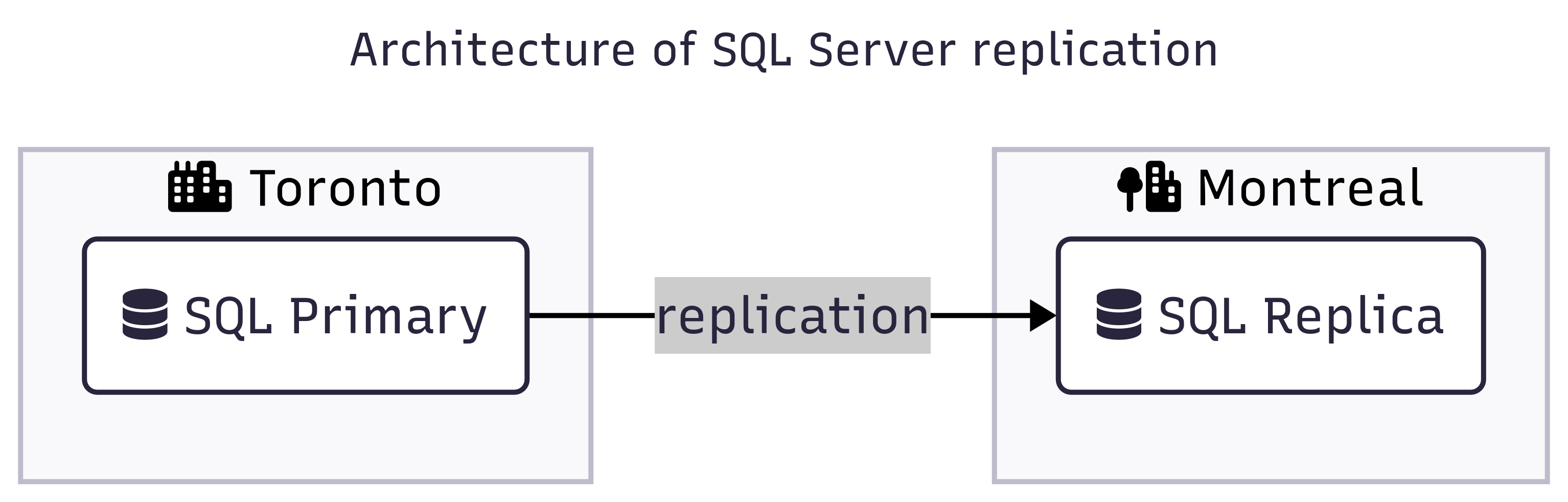
Our Environment
⚠️ This setup is for demonstration purposes only.
We provision two Cloud SQL instances to represent: (1) the primary Microsoft SQL Server and (2) the read replica.
To streamline configuration, we use an instance startup script that installs required packages, disables AppArmor, and enables IP forwarding at the operating system level.
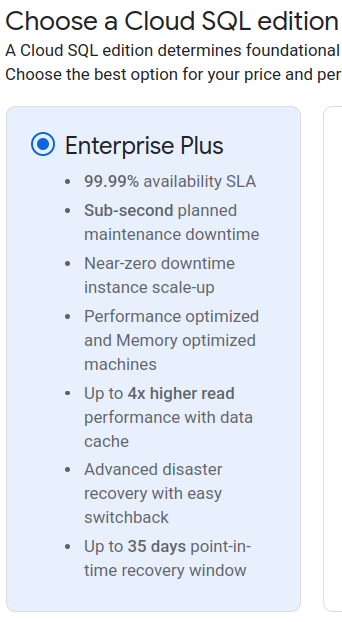
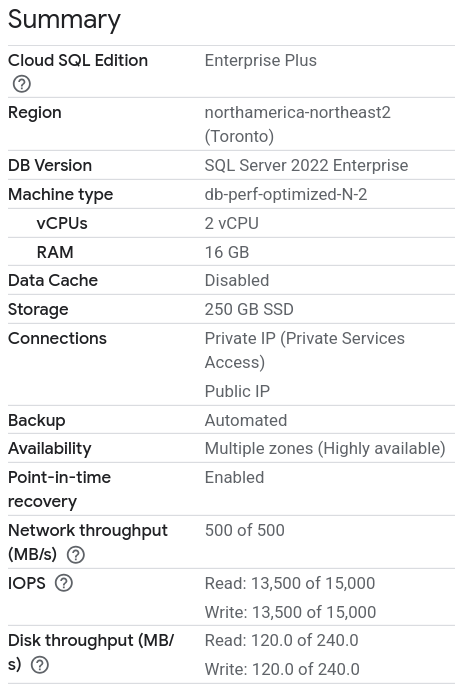
Primary SQL Server
An overview of the primary SQL Server.
- Name :
ms-sql-server-primary - SQL Edition:
SQL Server 2022 Enterprise - Cloud SQL Edition:
Enterprise Plus - Region:
northamerica-northeast2Toronto
Below are the corresponding screenshots from the Google Cloud Console.
Next, let’s set up a read replica.
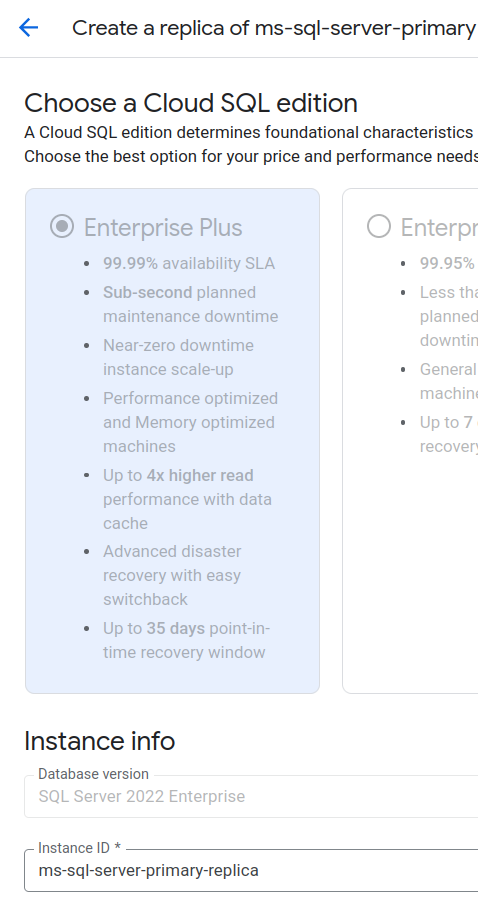
Read replica SQL Server
Name :
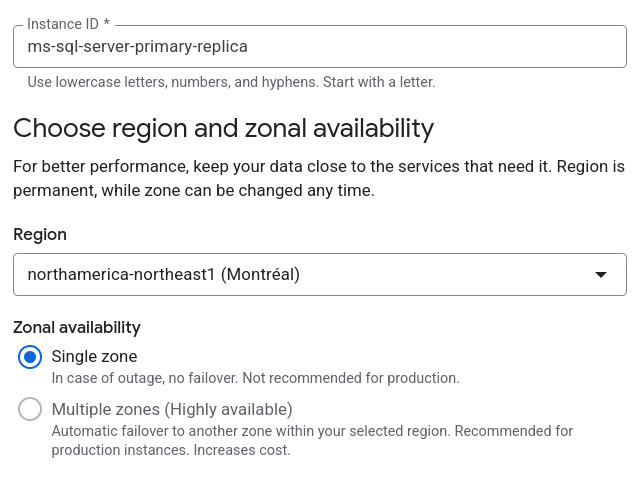
ms-sql-server-primary-replicaSQL Edition:
SQL Server 2022 EnterpriseCloud SQL Edition:
Enterprise PlusRegion:
northamerica-northeast1Montréal💡 The “Multiple zones (Highly available)” option is grayed out and, on hover, displays “Not supported for read replicas.”
This is because Cloud SQL for SQL Server uses SQL Server Read Scale Availability Groups.
As an alternative, you can configure Advanced Disaster Recovery (Advanced DR), which simplifies both recovery and fallback when a region is affected. Advanced DR requires:
- the Cloud SQL Enterprise Plus, and
- a cascadable replica.
However, the cascadable replica is also zonal, even though the Google documentation suggests otherwise (as of January 23, 2026).
Let’s summarize the replication implications.
Summary of Replication Conundrum
A Disaster Recovery (DR) SQL Server that can only be created as a zonal replica is worth careful consideration. The same applies to the Advanced DR setup. While you can promote a replica to become primary and after that make it highly available, it warrants careful planning and having the right tools for the job ready. A lot of companies use Terraform for provisioning; however, Terraform is not a good tool when it comes to post-deployment configuration management.
A disaster recovery (DR) SQL Server instance that can only be provisioned as a zonal replica warrants careful consideration—and the same applies to an Advanced DR setup. While you can promote a replica to become the primary instance and then enable high availability on it, doing so requires thoughtful planning and the right operational tools.
Many organizations use Terraform for provisioning, but Terraform is not well suited for ongoing, post-deployment configuration management. You’ll likely need complementary tools or processes (such as configuration management, scripting, or orchestration frameworks) to manage failover, promotion, and reconfiguration reliably in production.
The Account Management Conundrum
Google offers two main options for integrating SQL Serer with Active Directory (AD) in GCP:
- GCP Microsoft Managed AD
- Customer-managed Active Directory (CMAD), which uses the customer’s own AD (e.g., running on-premises).
Both options can be challenging for many clients because they come with significant technical limitations and architectural implications. In particular, organizations with strict regulatory and security requirements may find that these approaches are effectively non-starters.
Here are my selected—and opinionated—limitations of each integration option:
Microsoft Managed AD
- Introduces necessary but unwanted overhead just to use SQL Server (no one likes overhead.)
- Requires a one-way AD trust from on-premises — no, thank you.
CMAD
- No Private Service Connect (PSC) support.
- Requires opening TCP and UDP ports
53,88,135,389,445,464,3268,3269,49152-65535from Cloud SQL instances to all domain controllers. Again: no, thank you.
In addition, Integration with Microsoft Entra ID is currently in public preview, which typically suggests that it may reach general availability within about six months. However, that does not guarantee immediate support for all enterprise scenarios—for example, PSC support may arrive later.
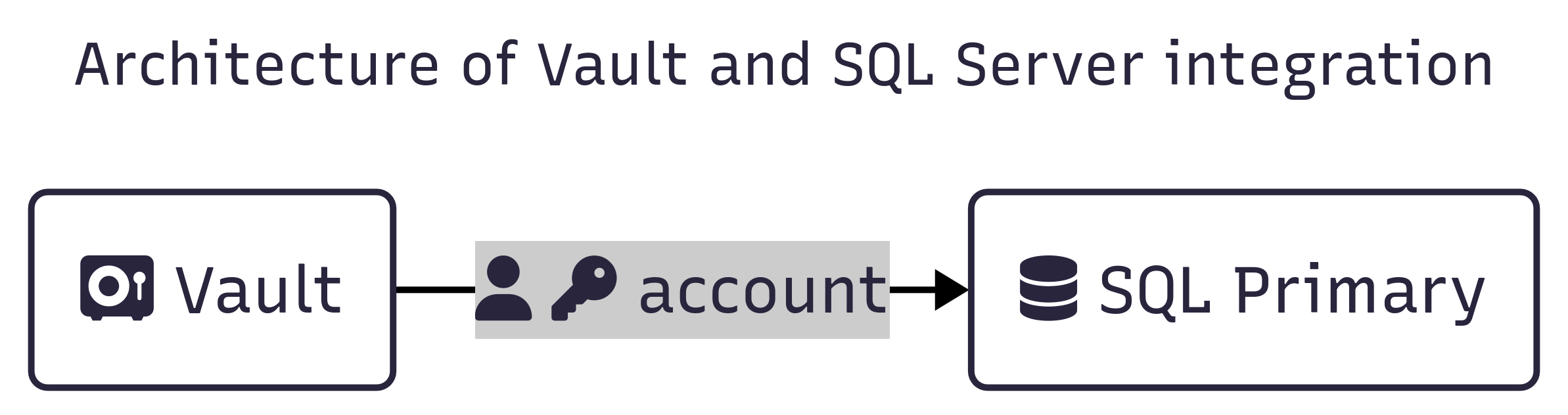
To keep things simple, we continue building on the SQL Server instances deployed earlier. We also introduce a GCE instance to host a HashiCorp Vault server, which we will later use for dynamic database credentials via Vault’s database secrets engine.
Create GCE resources
We will create a startup script for our GCE instance, the GCE instance itself, and a firewall rule.
GCE startup script
Create the startup script startup-script.sh where you will run gcloud compute instances create.
#!/usr/bin/env bash
set -euo pipefail

VAULT_VERSION="1.15.4"
VAULT_ZIP="vault_${VAULT_VERSION}_linux_amd64.zip"
VAULT_URL="https://releases.hashicorp.com/vault/${VAULT_VERSION}/${VAULT_ZIP}"

VAULT_ADDR="http://127.0.0.1:8200"
VAULT_BIN="/usr/local/bin/vault"
VAULT_DATA_DIR="/opt/vault/data"
VAULT_CONFIG_DIR="/etc/vault.d"
VAULT_CONFIG_FILE="$VAULT_CONFIG_DIR/vault.hcl"
VAULT_USER="vault"

echo "=== Installing dependencies ==="
apt-get update -y
apt-get install -y curl unzip iputils-ping tmux vim

echo "=== Creating vault user ==="
if ! id "$VAULT_USER" >/dev/null 2>&1; then
  useradd --system --home /etc/vault.d --shell /bin/false "$VAULT_USER"
fi

echo "=== Downloading Vault ${VAULT_VERSION} ==="
curl -fsSL "$VAULT_URL" -o /tmp/vault.zip

echo "=== Installing Vault binary ==="
unzip -o /tmp/vault.zip -d /tmp
install -m 0755 /tmp/vault "$VAULT_BIN"
setcap cap_ipc_lock=+ep "$VAULT_BIN"

echo "=== Creating directories ==="
mkdir -p "$VAULT_DATA_DIR" "$VAULT_CONFIG_DIR"
chown -R "$VAULT_USER:$VAULT_USER" /opt/vault /etc/vault.d
chmod 750 "$VAULT_DATA_DIR"


if [ -s "/etc/systemd/system/vault.service" ]; then
  echo "Vault config exists already."
else
  echo "=== Writing Vault config ==="
cat > "$VAULT_CONFIG_FILE" <<EOF
storage "file" {
  path = "$VAULT_DATA_DIR"
}

listener "tcp" {
  address     = "0.0.0.0:8200"
  tls_disable = 1
}

ui = true
EOF
fi

chown "$VAULT_USER:$VAULT_USER" "$VAULT_CONFIG_FILE"
chmod 640 "$VAULT_CONFIG_FILE"

if [ -s "/etc/systemd/system/vault.service" ]; then
  echo "vault.service is not empty (has a size greater than zero)."
else
echo "=== Creating systemd service ==="
cat > /etc/systemd/system/vault.service <<EOF
[Unit]
Description=HashiCorp Vault
Documentation=https://www.vaultproject.io/docs
Requires=network-online.target
After=network-online.target

[Service]
User=$VAULT_USER
Group=$VAULT_USER
Environment="VAULT_LOG_LEVEL=debug"
ExecStart=$VAULT_BIN server -config=$VAULT_CONFIG_FILE
ExecReload=/bin/kill --signal HUP \$MAINPID
KillMode=process
Restart=on-failure
LimitNOFILE=65536
LimitMEMLOCK=infinity

[Install]
WantedBy=multi-user.target
EOF
fi

echo "=== Starting Vault ==="
systemctl daemon-reexec
systemctl daemon-reload
systemctl enable vault
systemctl start vault

export VAULT_ADDR="$VAULT_ADDR"

echo "=== Waiting for Vault to start ==="
sleep 5

INIT_FILE="/root/vault-init.txt"
if [ -s "$INIT_FILE" ]; then
  echo === Vault initialized already ===
  echo "$INIT_FILE is not empty (has a size greater than zero)."
else
  echo "=== Initializing Vault ==="
  vault operator init -key-shares=1 -key-threshold=1 > $INIT_FILE
  cp $INIT_FILE /root/vault-init.bak
fi

UNSEAL_KEY=$(awk '/Unseal Key 1:/ {print $4}' $INIT_FILE)
ROOT_TOKEN=$(awk '/Initial Root Token:/ {print $4}' $INIT_FILE)

echo "Unseal Key: $UNSEAL_KEY"
echo "Root Token: $ROOT_TOKEN"

echo "=== Unsealing Vault ==="
vault operator unseal "$UNSEAL_KEY"

echo "=== Logging in ==="
vault login "$ROOT_TOKEN"

echo "=== Enabling database secrets engine ==="
vault secrets enable database

echo "=== Vault status ==="
vault status

echo "=== Done ==="
echo "Initialization details saved to $INIT_FILE"
GCE Instance Config
- Machine:
e2-small - Region:
northamerica-northeast2 - OS: Ubuntu 25.10 minimal
- Disk:
10Gbyte - Cloud API access scopes:
cloud-platform
gcloud compute instances create \
--machine-type=e2-small \
--image-family=ubuntu-minimal-2510-amd64 \
--image-project=ubuntu-os-cloud \
--scopes=cloud-platform \
--can-ip-forward \
--tags=vault \
--metadata-from-file=startup-script=./startup-script.sh \
--async \
vault
GCP VPC Firewall rule
Optionally, the firewall rule allows TCP port 8200 traffic to our vault
GCE instance tagged with vault. We shall use the vault commands directly
from the GCE instance.
# replace $CLOUDSDK_CORE_PROJECT with your GCP project or set the variable
gcloud compute --project=$CLOUDSDK_CORE_PROJECT \
firewall-rules create allow-vault \
--direction=INGRESS --priority=1000 --network=default --action=ALLOW \
--rules=tcp:8200 --source-ranges=aaa.bbb.ccc.ddd/32 --target-tags=vault
Vault Prerequisites
First, we grant Vault the required permissions on the MS SQL instance. Then, we configure the Vault database secrets engine and policies.
Vault User in MS SQL
Connect to your MS SQL instance with Cloud SQL Studio.
Create a database called acme.
-- Create Login
CREATE LOGIN vault_login WITH PASSWORD = 'yourStrong123Password#';

-- Create User works in acme, fails in master
CREATE user vault_user for login vault_login;

-- Grant Permissions, fails in acme, fails in master
-- GRANT ALTER ANY LOGIN TO "vault_user";

-- works in master, but was supposed to be vault_user, not vault_login
GRANT ALTER ANY LOGIN TO "vault_login" AS CustomerDbRootRole;

-- works in acme
GRANT ALTER ANY USER TO "vault_user";

-- fails in acme, fails in master with Grantor does not have GRANT permission.
-- GRANT ALTER ANY CONNECTION TO "vault_login";
-- works in master
GRANT ALTER ANY CONNECTION TO "vault_login" AS CustomerDbRootRole;

-- works in acme
GRANT CONTROL ON SCHEMA::dbo TO "vault_user";
-- works in acme
EXEC sp_addrolemember "db_accessadmin", "vault_user";

-- master
ALTER SERVER ROLE CustomerDbRootRole ADD MEMBER [vault_login]

-- acme
ALTER ROLE [db_accessadmin] ADD MEMBER [vault_user];
EXEC sp_addrolemember "db_accessadmin", "vault_user";
ALTER ROLE [db_securityadmin] ADD MEMBER [vault_user];
Prepare Vault
Connect to the GCE instance vault.
# replace $CLOUDSDK_CORE_PROJECT with your GCP project or set the variable
gcloud compute ssh \
  --tunnel-through-iap --project $CLOUDSDK_CORE_PROJECT \
  vault
Configure the Vault MS SQL plugin.
vault write database/config/my-mssql-database \
    plugin_name=mssql-database-plugin \
    connection_url='sqlserver://{{username}}:{{password}}@10.122.144.6:1433' \
    allowed_roles="my-role" \
    username="vault_login" \
    password="yourStrong123Password#"

Success! Data written to: database/config/my-mssql-database
Define a role that maps its name to a SQL statement for database credential creation.
vault write database/roles/my-role \
    db_name=my-mssql-database \
    creation_statements="CREATE LOGIN [{{name}}] WITH PASSWORD = '{{password}}';\
        USE acme CREATE USER [{{name}}] FOR LOGIN [{{name}}];\
        GRANT SELECT ON SCHEMA::dbo TO [{{name}}];" \
    revocation_statements="USE acme DROP USER IF EXISTS [{{name}}];\
        USE master DROP LOGIN [{{name}}];" \
    default_ttl="30m" \
    max_ttl="24h"

Success! Data written to: database/roles/my-role
Generate a dynamic database credential by reading from the new Vault role.
vault read database/creds/my-role

Key                Value
---                -----
lease_id           database/creds/my-role/9jFQz0AV1UPAKYBm7I5AzL90
lease_duration     30m
lease_renewable    true
password           7MBK6OguP24xMf4-OVJM
username           v-root-my-role-FEWE2ejlHFCalfLd9SNC-1769437222
The account above was created in our Cloud SQL instance.
If it isn’t actively renewed, it expires after the specified time-to-live (TTL) parameter default_ttl and will be dropped from the database.
Summary
The feature set of SQL Server on Google Cloud SQL has important architectural and operational implications.
While Active Directory integration is technically supported, the current options come with significant design trade-offs. You either:
- Run an additional Google-managed service (Microsoft Managed AD), which then establishes a one-way trust with your existing Active Directory, or
- Open a large range of TCP and UDP ports on all of your AD domain controllers from all of your Cloud SQL for SQL Server instances.
The upcoming Entra ID integration (currently in public preview) may address some of these concerns. However, it remains unclear when—or if—that integration will fully support Cloud SQL instances that are reachable only via Private Service Connect (PSC).
Similarly, and closely related to the above, centralized account management for Cloud SQL for SQL Server can be more complex than for services that integrate directly with Google IAM. When AD integration is not a viable option—due to security, regulatory, or architectural constraints—an alternative is to use the database secrets engine in HashiCorp Vault. This approach enables dynamic database credential provisioning and revocation.
Vault is a powerful, holistic secrets management platform that may already be integrated with your central identity provider, effectively enabling centralized account management for SQL Server as well.
There is a lot to think through and plan. It’s worth experimenting in your own environment and periodically revisiting the latest feature set and documentation—things in this space evolve quickly.